Quick Start Guide
Create Your Account
- 01
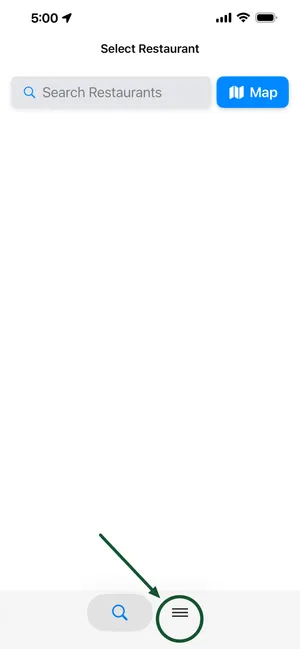
Install the Tasteful app. Open Tasteful, and tap the menu icon on the right of the bottom navigation bar.
- 02
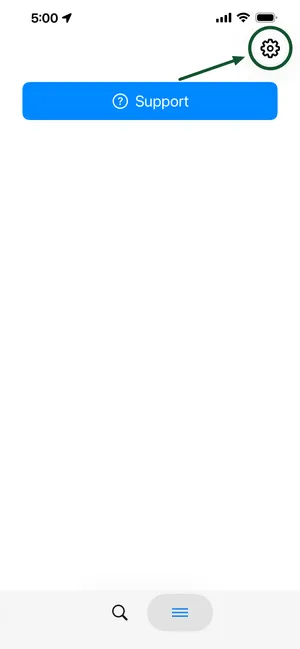
Tap the settings icon in the upper right corner. Tap "Account", and then tap the "Restaurant Login" button.
- 03
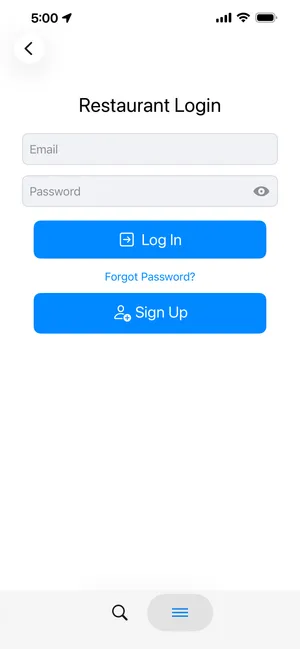
On the Restaurant Login screen, tap the "Sign Up" button, then tap the "Next" button.
- 04
Choose your restaurant:
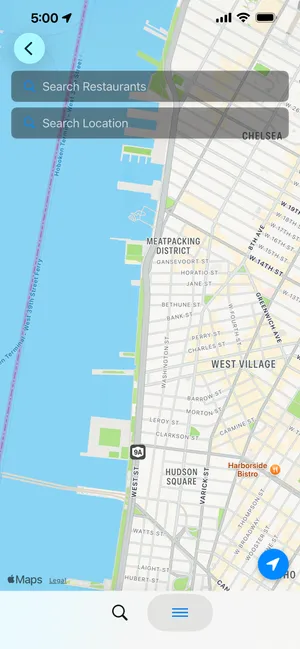
- iPhone: either tap your restaurant's icon on the map or search its name in the "Search Restaurants" box and tap its result.
- Android: search your restaurant's name in the "Restaurant name" box and tap its result.
On the Confirm Details screen, confirm the correct restaurant is selected and press the "Continue" button.
*Only restaurants listed on Apple Maps will be available.
- 05
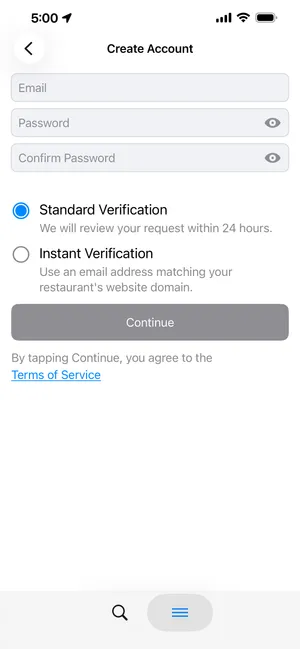
Enter an email address and password to use for your account. If your email domain matches the restaurant's website domain (e.g. admin@harborsidebistro.com and www.harborsidebistro.com) you will be instantly approved. Otherwise, Tasteful staff will review and approve your request within 24 hours. In either case, check your inbox and spam filter for the approval notification and click the link to verify your email. Then return to the Restaurant Login screen and log in to your account.
Import Your Menu
- 06
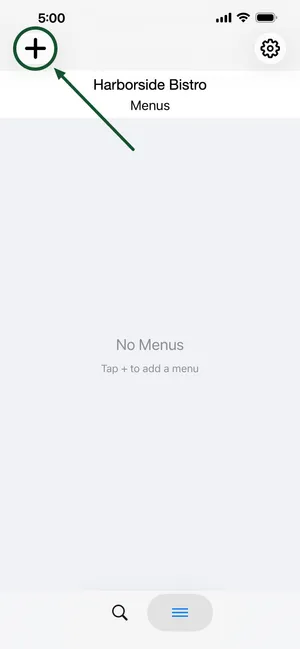
Tap the "+" button on the top left to add your first menu.
- 07
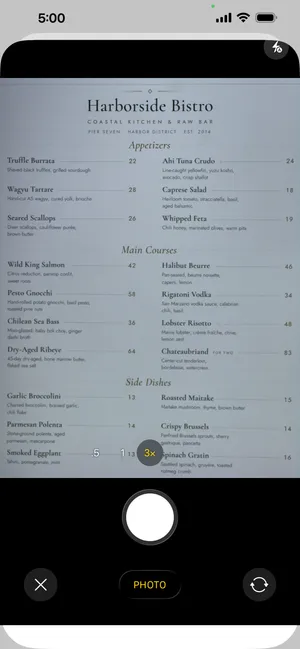
To use Tasteful's instant menu import, select "Scan or Upload Menu", enter your menu name (e.g. "Dinner"), select source "Camera", and snap a photo of your menu. Be sure to include dish names and categories (e.g. "Appetizers") if any. If you have multiple pages, tap "Scan Another Page". When you're done, tap "Finish".
Add Photos and Edit Your Menu
- 08
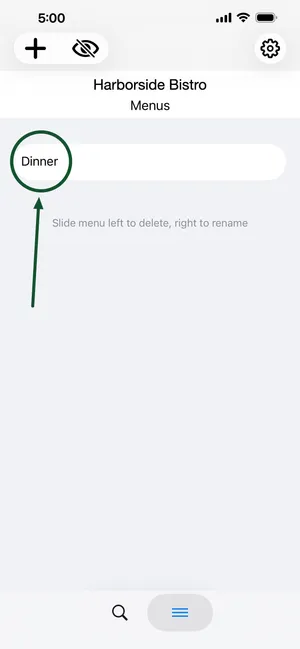
To add photos or edit your menu, tap its name to open it.
- 09
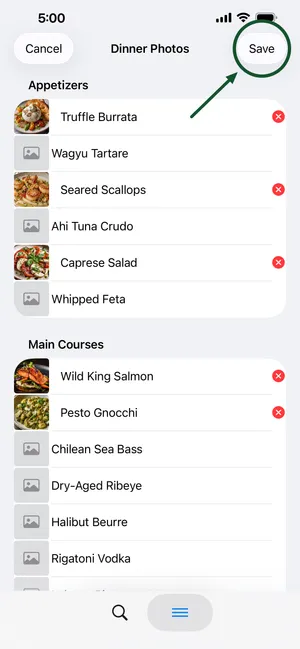
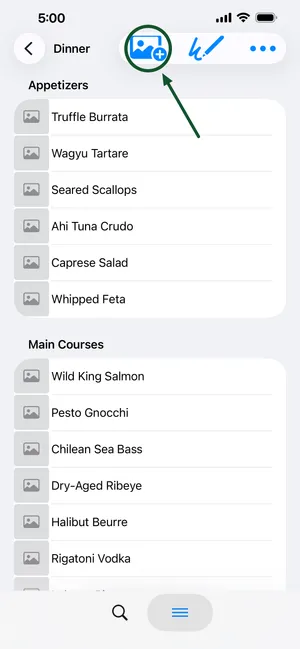
Tap the add photos icon in the top toolbar to see photo source options. You can tap "Choose Photos" to select photos from your phone's gallery. Tap the image placeholder icon next to each dish name and then select its photo from your camera roll. You can also tap the pencil icon in the toolbar to edit, add, delete, or sort the menu dish names and categories, or tap the ... icon for other options.
- 10
Tap "Save" to publish your changes.